Enough subscriptions.
One for films. One for music. One for books. One for the children's lessons. One for your Bible app, your passwords, your private files. Every month, every one of them, again.
Churtex does all of it, on the computer you already have. No monthly fee. No card. No bill.
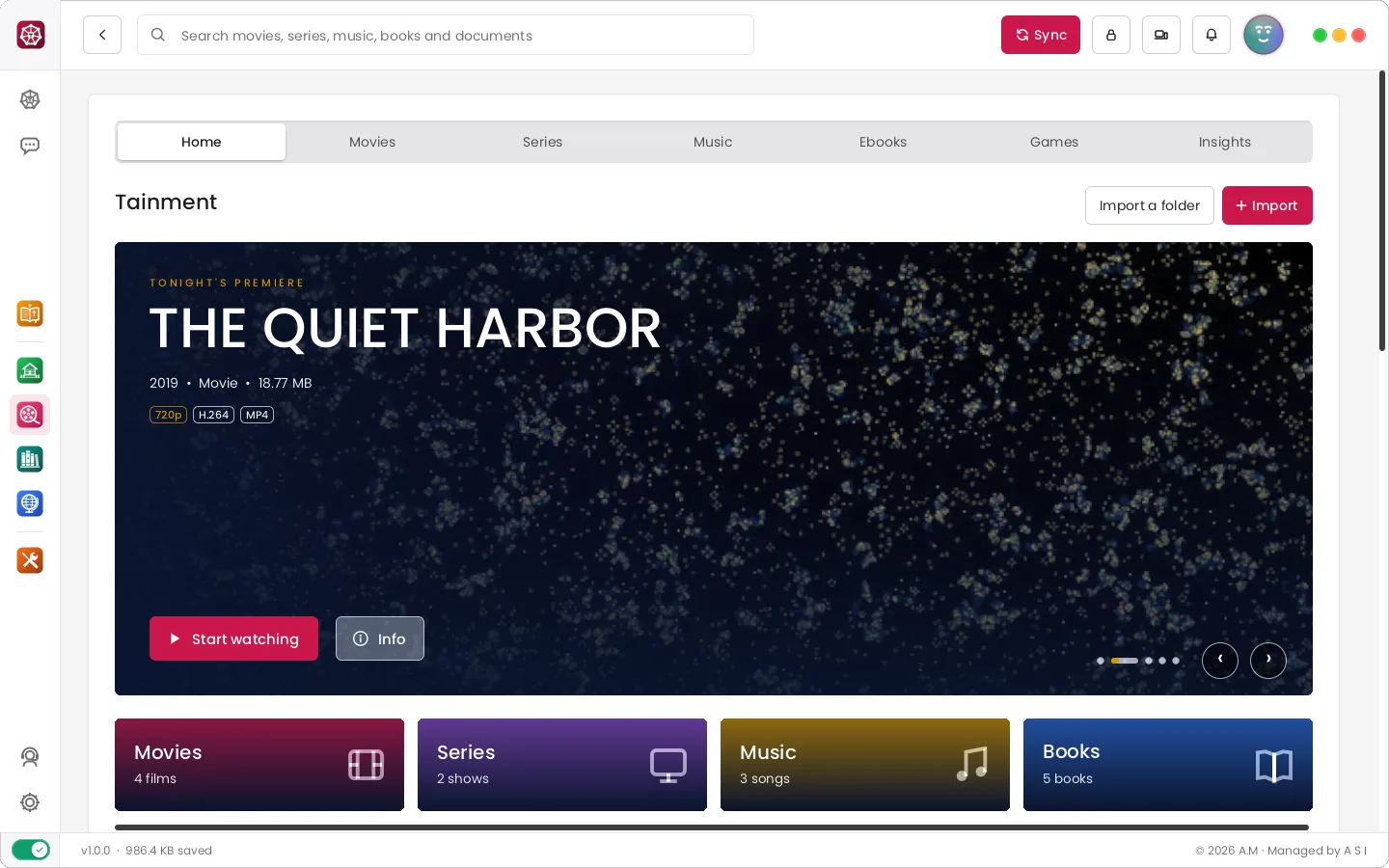
Tainment
Your whole library. One beautiful place.
Films, series, music and books, played right inside Churtex. Every file is made smaller as it comes in, so far more fits on the computer you already have. No subscriptions. No ads.
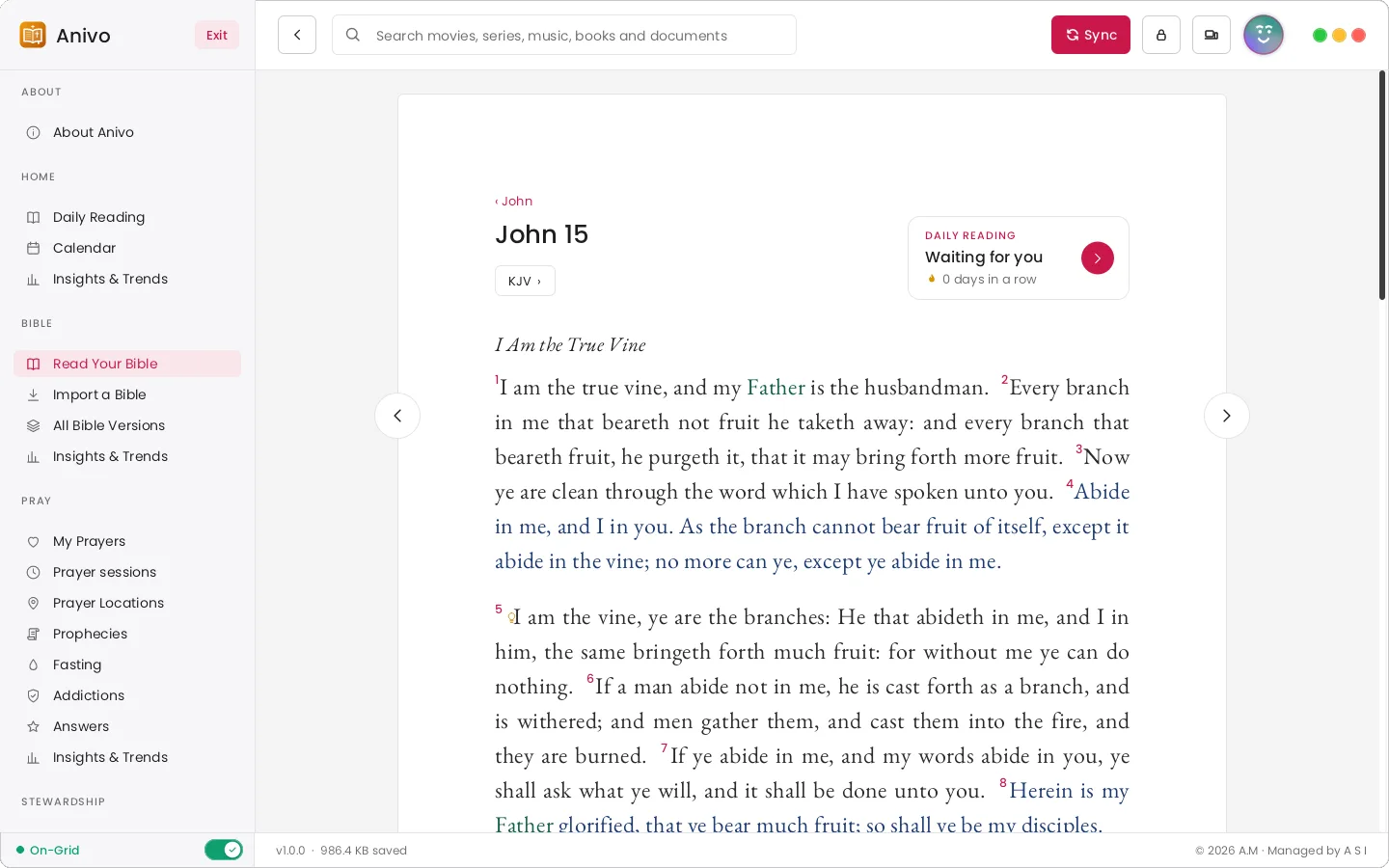
Anivo
The Bible, as it deserves to be read.
Four Bibles built in, in English and French. Daily reading, prayer, fasting, sermons and a journal, in a page as calm as a printed book.
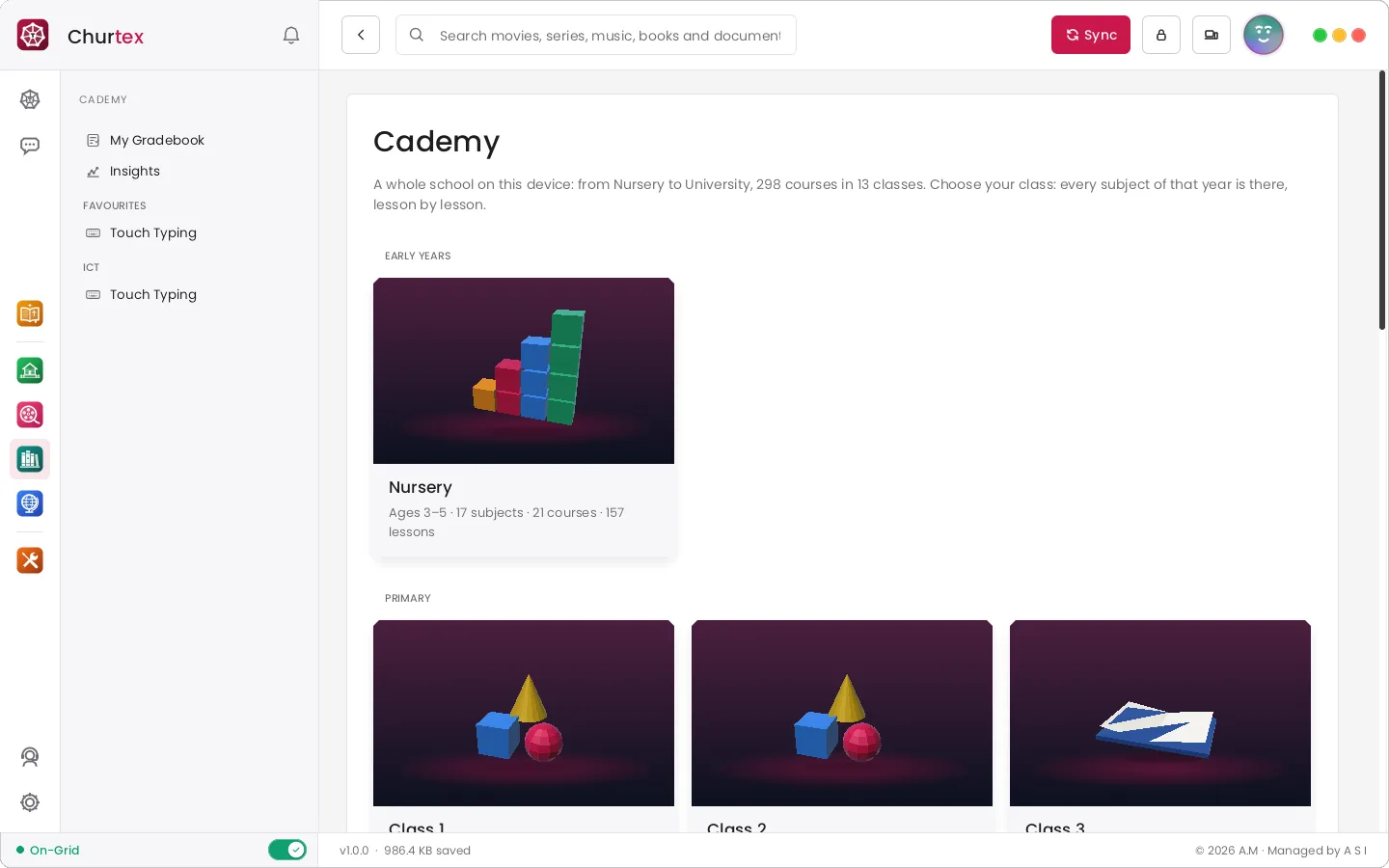
Cademy
A whole school. From Nursery to University.
298 courses in 13 classes, lesson by lesson, with practice and quizzes. Every subject of the year, for every child, in every home. No internet. No fees.
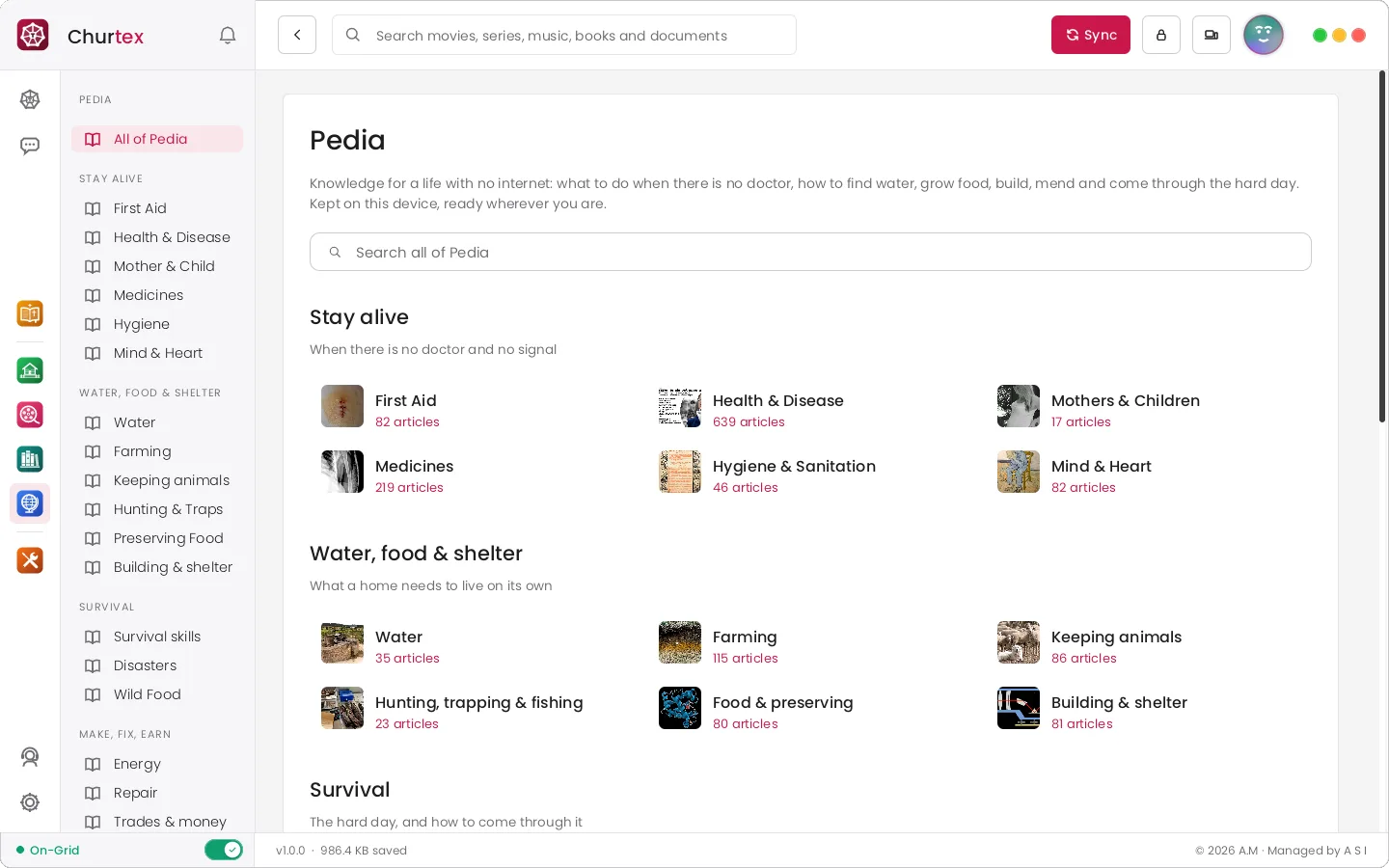
Pedia
When there is no doctor and no signal.
More than a thousand articles on first aid, health, water, food, farming and shelter. Kept on your computer, ready wherever you are.
Vault
Private means private.
Your private files, locked with your own key, on your own computer. Not on our servers. Not on anyone's. When you step away, it locks itself.

Free. Really.
Every feature. Every update. No trial, no catch. Soon you will be able to buy books, music and films from our store, and that is how we keep the lights on.
One family.
Three apps that look, feel and work alike. Learn one, and you know them all.

Churtex
For familiesFilms, music, books, the Bible, a whole school and knowledge for life.
Available now, free
Churtex Ark
For churchesWorship projection, tithes and offerings, members, sermons and events.
Coming soon
Churtex One
For organisationsOmon accounting, invoices and payroll, stock, documents and records.
Coming soonWhy we build Churtex
Great software, for everyone.
Billions of people live where the internet is slow, costly or simply not there. They deserve software as good as anyone's. So we build Churtex to work offline, on the computer you already have, and we give it away.
Support it
Use Churtex. Share it with your family, your church and your school. Tell us from inside the app what to make better. That is how it grows.
Get ChurtexInvest in it
We are building for the next billion people, and we welcome partners who share that mission. Sign in to your A S I account and write to us there.
Talk with usInstall it in a minute.
- Download Churtex-Setup. It works on Windows 10 and 11, 64-bit.
- Open the file from your Downloads folder.
- If Windows says "Windows protected your PC", choose More info, then Run anyway. Churtex is new, so Windows does not know it yet.
- Follow the installer to the end. Churtex is added to the Start menu.
- Open Churtex from the Start menu. To keep it close: right-click it and choose Pin to Start or Pin to taskbar.
Remove Churtex
Settings → Apps → Installed apps → Churtex → Uninstall. Your library is not deleted with the app.
For a computer where you cannot install programs, or to carry Churtex on a flash disk.
- Download tex-suite-…-windows-x86_64.tar.xz from the release folder.
- Unpack it. Windows 11 opens it with a right-click → Extract All. On Windows 10, open Terminal or PowerShell in your Downloads folder and type:
tar -xf tex-suite-*-windows-x86_64.tar.xz - Keep everything in the folder together:
tex-suite.exe, its.sigfile and themediafolder. Churtex checks its signature every time it starts. - Double-click tex-suite.exe to open Churtex.
- A desktop icon: right-click tex-suite.exe → Show more options → Send to → Desktop (create shortcut). Rename the shortcut to Churtex.
Remove it
Delete the folder and the shortcut. Nothing else was installed.
- Download the .deb file.
- Double-click it, and choose Install in your Software app. Or, in a terminal in your Downloads folder:
sudo apt install ./tex-suite_*_amd64.deb - Open Churtex from your applications menu. The icon, the menu entry and the
.texvaultfile type are set up for you.
Remove Churtex
sudo apt remove tex-suite: your library is not deleted with the app.
- Download the .rpm file.
- Double-click it, and choose Install in your Software app. Or, in a terminal in your Downloads folder:
sudo dnf install ./tex-suite-*.x86_64.rpm(openSUSE:sudo zypper install ./tex-suite-*.x86_64.rpm) - Open Churtex from your applications menu. The icon, the menu entry and the
.texvaultfile type are set up for you.
Remove Churtex
sudo dnf remove tex-suite (openSUSE: sudo zypper remove tex-suite): your library is not deleted with the app.
For any 64-bit Linux. It installs for you only, with no password needed.
- Download the .tar.xz file.
- Unpack it: right-click it and choose Extract Here. Or in a terminal:
tar xJf tex-suite-*-linux-x86_64.tar.xz - Open a terminal in the new tex-suite folder and run:
sh install.sh - That one command does everything: it puts Churtex in
~/.local/bin, adds the menu entry with its icon in every size, registers the.texvaultfile type, and refreshes the icon list so the icon shows at once. - Open Churtex from your applications menu. If the icon does not show yet, log out and back in once.
- To start it from a terminal as well, add
~/.local/binto your PATH:echo 'export PATH="$HOME/.local/bin:$PATH"' >> ~/.bashrc, then open a new terminal.
Prefer to set it up by hand?
- Copy the programs:
mkdir -p ~/.local/bin && cp tex-suite tex-suite.sig texsuite texsuite.sig ~/.local/bin/(keep each.sigbeside its program). - The icons:
for n in 32 48 64 128 256 512; do mkdir -p ~/.local/share/icons/hicolor/${n}x${n}/apps; cp assets/tex-suite-$n.png ~/.local/share/icons/hicolor/${n}x${n}/apps/tex-suite.png; done - The menu entry:
mkdir -p ~/.local/share/applications && sed "s|^Exec=tex-suite|Exec=$HOME/.local/bin/tex-suite|" assets/tex-suite.desktop > ~/.local/share/applications/tex-suite.desktop - Refresh:
update-desktop-database ~/.local/share/applications; gtk-update-icon-cache -f ~/.local/share/icons/hicolor(if a command is missing, log out and in instead).
Remove Churtex
From the unpacked folder: sh install.sh --uninstall: your library is not deleted with the app.
Check your download (optional)
Each release folder has a SHA256SUMS file. Linux: sha256sum -c SHA256SUMS --ignore-missing in the folder with your download. Windows PowerShell: Get-FileHash .\Churtex-Setup-*.msi and compare the number with the one in SHA256SUMS.
Updates
Churtex updates itself from inside the app: Settings → Updates. You never need to download it again, and updates are free. You can always report a problem from inside the app; replies there come with Priority Support (TSh 60,000 / $30 a year). Support is only through the app.